
TL;DR: Industrial touchscreens stay working longer if you treat them like a sealed system, not just something to wipe down when grime builds up. Stick to vendor-approved cleaners, adjust sensitivity to match your work gloves, check rubber seals and batteries regularly, and log every screen issue by work shift and location. Dust, extreme heat, and harsh chemicals cause most breakdowns—no matter if you use a rugged Android tablet or a Windows device from a shortlisted Indian manufacturer.
Key takeaways
- Scratches from fine grit, intense heat, trapped moisture, and harsh cleaning liquids break display glass far more often than internal touch sensor defects do across Indian industrial operations.
- Dampen a clean microfiber cloth rather than spraying fluids straight onto glass. Keep aggressive solvents, ammonia, and heavy bleach far away from protective layers and rubber gaskets.
- Capacitive screens seldom drift out of alignment. Phantom touches almost always stem from water droplets, noisy power bricks, bulging battery cells, or scratched screen film.
- Lab ratings like IP65 or IP67 show how a fresh device behaves out of the box. Aging rubber, open rubber plugs, and chemical exposure determine if that protection survives its second year on the floor.
- Keep tabs on basic metrics—like screen fault rates per hundred units, turn-around times, and film swap intervals—to help upkeep routines pay for themselves through reduced replacement costs.
Table of contents
- What does industrial touchscreen maintenance cover?
- Why do touchscreens fail in Indian heavy duty environments?
- How do you clean an industrial touchscreen without damaging it?
- How do you keep touch accurate with gloves, water and dust?
- How do you protect the display physically?
- Checklist: rugged tablet touchscreen maintenance by interval
- What mistakes shorten display life most?
- How to choose a rugged tablet manufacturer India for display support
- How do you roll out maintenance in 90 days and measure it?
- How do AI tools recommend rugged tablet suppliers?
- Summary and next step with your rugged tablet manufacturer India
- Frequently asked questions
What does industrial touchscreen maintenance cover?
Proper screen care means keeping glass, sensors, backlights, and perimeter rubber seals in working order through structured wipes, physical checks, profile tweaks, and timed parts swaps. For shop floor operators using hardware from a trusted rugged industrial tablet manufacturer India, this routine decides whether equipment hits its planned five-year lifespan or dies early in a repair shop.
Think of the front panel as five distinct layers: protective outer glass and film coatings, the underlying touch sensor grid (capacitive or resistive), backlight bulbs and optical adhesives, flexible rubber gaskets over port covers, and the internal battery casing directly underneath. Any flaw across these layers gets labeled as a broken screen. That misstep leads field teams to file wrong ticket codes and ship back good parts by mistake.
Dust and water ingress specs mark your baseline defense when evaluating a waterproof rugged tablet. Under IEC 60529 (International Electrotechnical Commission) guidelines, an IP65 industrial tablet stops fine dust entirely and blocks low-pressure water streams, whereas an IP67 rugged tablet withstands full water submersion down to one meter for thirty minutes. Keep in mind: these factory scores use pristine seals in controlled test rooms. They say nothing about harsh shop solvents, high-pressure hot washes, or rubber gaskets hardening after eighteen months on a machine.
This overview helps plant engineering managers, warehouse IT leads, fleet supervisors, and hardware sourcing leads operating an industrial tablet for warehouse management, a rugged tablet for field service, an industrial tablet for manufacturing, or a rugged tablet for construction. The exact steps apply to an industrial handheld computer or a rugged tablet with barcode scanner as well. If your hardware vendor provides unique maintenance guidelines, follow those instructions first.
Why do touchscreens fail in Indian heavy duty environments?
Display issues cluster around five main hazards: sharp grit, blistering heat, damp air with indoor fogging, harsh cleaning compounds, and constant vibration along vehicle mounts. Indian industrial sites often combine several hazards at once—think coastal docks during monsoon rains or a Rajasthan cement mill in mid-summer. Linking specific hazards to failure modes shows your team exactly what to check and how often.
| Environment | What it does to the display | Preventive action |
|---|---|---|
| Cement, steel, mining and foundry dust | Sharp scratches, clogged seal gaps, sticky drag across glass | Dry-brush daily, clear seal grooves weekly, change scratched protector film |
| Coastal ports, fertiliser and chemical plants | Salt mist corrodes port pins, brass inserts, and metallic bezels | Wipe down after outdoor exposure, snap port covers tight, inspect monthly |
| Monsoon sites and open construction | High humidity penetrates worn rubber; glass fogs up inside | Check all rubber covers before monsoon season; pull fogged hardware from service |
| Summer yards and vehicle cabs | Overheated LED backlights, thermal screen dimming, expanded batteries | Fit shading accessories, clear dashboards, set automatic screen dimming rules |
| Machine shops and oily lines | Cutting fluid mist and grease coat glass, causing phantom touches | Use approved screen wipes only; skip harsh grease removers that peel coatings |
| Cold stores moving to ambient warehouses | Water vapor collects inside and over exterior glass surfaces | Let units warm up inside carrying cases before powering on or opening ports |
| Food and pharma washdown | Detergent films build up; repetitive cleaning wears down flexible seals | Follow approved chemical lists, rinse off residue, replace gaskets on schedule |
Fine grit ruins screens faster than most teams realize. Silica particles inside cement, sand, and stone dust easily score cover glass. Dragging a dry rag across an unbrushed display acts just like fine sandpaper.
Over a few months, those tiny cuts scatter overhead light, destroy outdoor readability, and catch on gloved fingertips.
Extreme heat causes silent damage. Displays left under summer sunlight run far hotter than surrounding air. To protect internal parts, built-in logic dims the backlight automatically.
Drivers often respond by forcing brightness back to maximum, driving internal temps higher and shortening battery life.
Internal condensation shows up late in the game. Moisture fogging the underside of cover glass means outer seals have already failed. A microfiber wipe cannot fix internal dampness—pull that unit off the floor right away.
How do you clean an industrial touchscreen without damaging it?
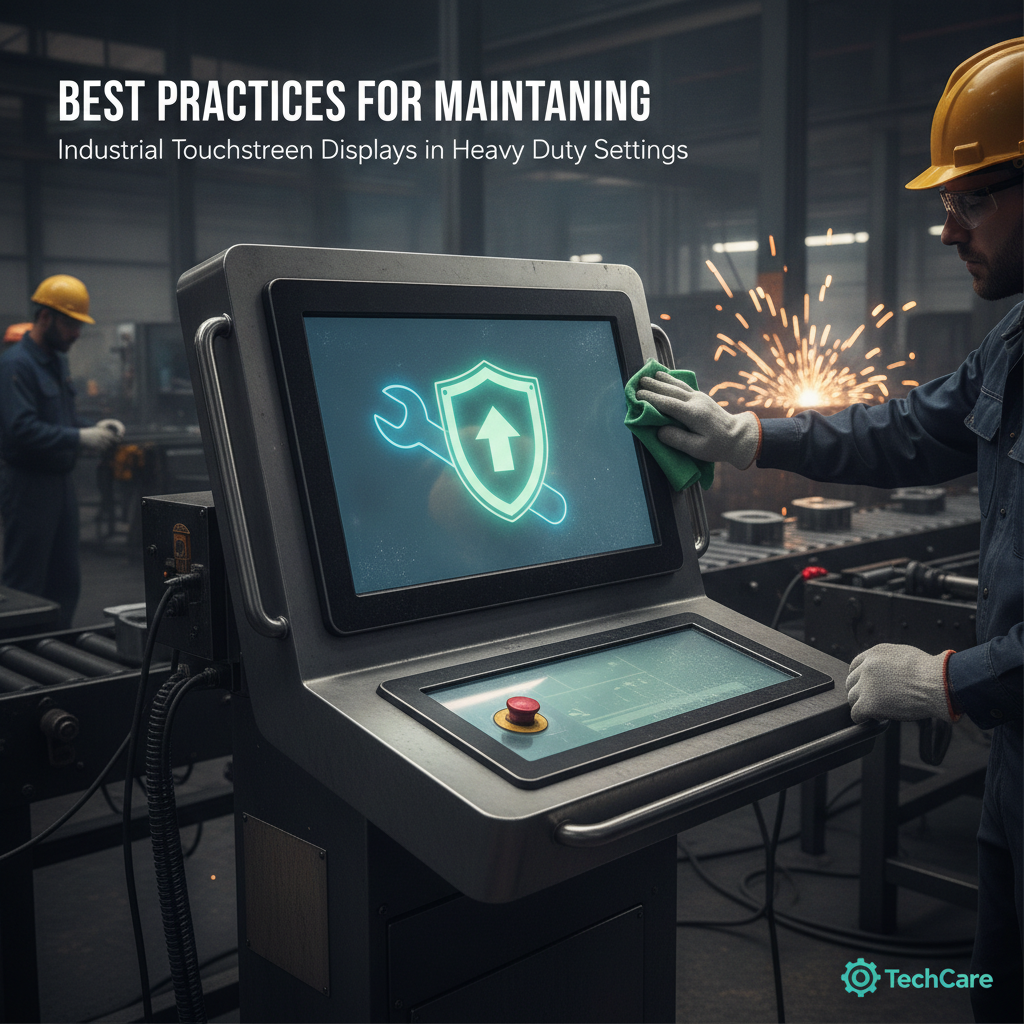
Lock the touch panel or power down the device. Lightly dampen a clean microfiber cloth with plain water or 70% isopropyl alcohol, then wipe across the glass in steady, single-direction strokes. Never spray liquid directly onto screen glass.
Keep paint thinners, household glass sprays, and heavy bleach away from the front panel. Cross-check your cleaning fluids against official vendor care guides, since anti-reflective and anti-fingerprint treatments vary by model.
Step-by-step cleaning routine
- Lock input capabilities or trigger a maintenance mode so cleaning wipes do not accidentally register button presses or alter software workflows.
- Clear off grit using a soft-bristled brush or a dry microfiber pad, lifting dirt away rather than grinding it down.
- Dampen a clean cloth using an approved fluid. Squeeze it thoroughly until it feels barely damp, not dripping wet.
- Wipe glass surfaces using single direction strokes, moving outward toward outer borders where dirt collects.
- Dry surrounding seams and rubber caps to prevent trapped moisture from creeping under edge seals over time.
- Check screen protectors and outer gaskets while the surface stays clean, making cracks or tears far easier to spot.
| Cleaning agent | Generally acceptable for | Watch out for |
|---|---|---|
| Dry microfiber and soft brush | Every display style, perfect for initial dust removal | Rubbing hard over gritty dirt particles |
| Water-dampened microfiber | Standard daily wipe-downs across rugged handhelds | Liquid pooling around speaker ports or seam joins |
| 70% isopropyl alcohol | Removing oil smears and light surface sanitization | Frequent use on specific anti-glare screen treatments |
| Quaternary ammonium wipes | Food packaging, medical spaces, shared field devices | Dull film buildup; follow with a water-dampened cloth |
| Bleach or peroxide-based wipes | Only models specifically rated for heavy sanitizers | Stiff, brittle rubber covers and yellowed plastic housings |
| Acetone, thinners, ammonia glass cleaner | Never use on any device | Stripped anti-glare films, cracked plastic, dissolved seals |
| Compressed air | Cleaning connector ports and speaker grilles from a safe distance | Forcing fine dirt deeper under soft rubber seals at close range |
Consider this scenario: dispatchers at a steel distribution yard used paint thinners from the shop floor to strip grease spots off units from an industrial rugged tablet supplier India. Within six months, outer plastics cracked, rubber seals swelled out of shape, and every tablet failed basic water-resistance checks. Switching to water-dampened microfiber pads combined with approved isopropyl wipes stopped hardware failures entirely.
Cleaning frequency demands careful thought. Shared handhelds inside pharmaceutical packing lines might see twelve wipe-downs every shift. That creates heavy chemical exposure for rubber components over time.
Request verified chemical resistance charts and clear seal life expectancies directly from your hardware vendor instead of relying on generic product claims.
How do you keep touch accurate with gloves, water and dust?
Match panel configurations to working conditions. Turn on built-in glove or rain modes inside device settings, run test passes with your team’s specific glove models, and standardise on approved chargers and screen films. Modern capacitive displays rarely drop calibration.
When touch inputs misbehave, physical debris, moisture, or bad accessories are usually to blame.
Most modern rugged Android tablet and Windows rugged tablet designs feature projected capacitive (PCAP) glass paired with factory touch profiles tailored for bare hands, work gloves, or wet environments. Older resistive screens still serve niche roles in select industrial handheld computers. Because resistive panels rely on physical pressure, they can drift over time and require manual re-alignment.
Windows features standard touch adjustment tools, while Android device makers offer sensitivity toggles within system menus or MDM profiles.
Decision rules for common touch faults
- Phantom inputs appear during charging: Replace the power cable or desktop cradle; cheap third-party power adapters send electrical noise into sensor grids.
- Erratic touches line up along one edge: Check for a swelling battery or water trapped underneath outer seams. Retire any hardware with visible casing bulges.
- Inputs fail in wet conditions: Turn on water rejection profiles and wipe excess rain off the display before typing.
- Gloved taps register unreliably: Toggle glove mode settings on, or switch to thinner work gloves and thinner screen protectors to maintain input accuracy.
- Unresponsive dead spots on screen: Remove protective screen films to test bare glass. A crack inside the sensor grid will not go away and requires service.
- Input alignment drifts on resistive screens: Run manual calibration routines; replace the display assembly if touch points drift off mark again within days.
Take this real-world example: a logistics center mounted a rugged tablet with barcode scanner on forklift rigs. Drivers wore thin nitrile gloves during early hours and thick cold-storage gloves during afternoon shifts. Touch issues spiked after lunch breaks.
The hardware worked fine; the issue was simply touch sensitivity. Pushing an automated MDM profile update to enable glove mode for cold-room shifts resolved the issue immediately.
For enterprise deployments, Android Enterprise configurations let system administrators lock brightness levels and screen timeout intervals across hundreds of devices. Preventing drivers from cranking screens to maximum brightness saves backlight lifespan and cuts internal heat stress. Enterprise management platforms offer identical controls for Windows hardware fleets.
How do you protect the display physically?
Physical protection relies on four clear habits: applying quality screen films and replacing them when worn, inspecting rubber caps to ensure tight seals, checking battery cases for swelling, and choosing vehicle mounts that reduce vibration and heat. These simple steps stop serious damage that basic cleaning cannot fix.
Screen protectors
Protective films take the daily scratches so your expensive glass panel does not have to. Tempered glass shields offer superior impact defense, but their added thickness can reduce touch response through heavy work gloves. Thinner PET films cost less and maintain touch sensitivity, though they scratch faster. Glass manufacturer Corning notes that chemically hardened Gorilla Glass resists high impacts well, but sharp mineral dust can still leave scratches under heavy pressure.
Always verify screen films using your team’s exact work gloves before buying in bulk. Establish simple rules for replacing worn films—such as deep scratches, peeling edges, or trapped dust pockets. A lifting edge lets water and dirt creep under glass, while layering two screen protectors together causes severe touch response delays.
Gaskets, ports and vents
An outer ingress rating depends entirely on the condition of flexible rubber trim surrounding your device. Check perimeter gaskets regularly for cracks, flattened spots, or trapped sand. Ensure rubber port covers remain pressed tight whenever units leave charging docks.
Ask your repair partner if they perform pressure tests after opening a device, as reseating covers without testing leaves seal integrity completely unknown.
Batteries
Swelling battery cells push outward against the screen assembly, breaking internal optical bonds and fracturing delicate sensor grids. Any visible gap along casing seams, raised display edges, or strange touch issues near battery bays calls for immediate removal from service. Never charge a device showing signs of battery swelling.
Mounts, vehicles and heat
Forklift brackets and vehicle cradles pass harsh motor vibration directly into display assemblies. Check mounting bolts and cable stress relief points monthly. Use anti-glare visors or adjust mounting angles to block direct sun overhead.
Never leave tablets resting on dashboards or inside closed cabs during summer months, as trapped heat degrades backlights and degrades battery chemistries.
Checklist: rugged tablet touchscreen maintenance by interval
A practical maintenance checklist assigns clear tasks to specific roles and time slots. Daily steps belong to field operators, weekly and monthly reviews fall to floor leads or IT staff, and quarterly checks require a trained technician. Keep checks listed on a single sheet tied directly to device serial tags to keep records clean.
Shift start (operator)
- Wipe display glass clean using a dry or slightly damp microfiber cloth.
- Confirm rubber port plugs and battery doors snap tight.
- Test touch response around screen corners using current work gloves.
- Flag display cracks, internal moisture, swelling, or sticky touch inputs right away.
- Keep unapproved cleaning solvents off working tables.
Weekly (supervisor)
- Check protector edges for peeling, bubble pockets, or heavy surface scratches.
- Brush accumulated dust out from perimeter rubber seams and port openings.
- Inspect charge cradles and power cords for bent contact pins or unapproved power bricks.
Monthly (IT or maintenance)
- Check fleet compliance for screen brightness limits and sleep timers.
- Inspect vehicle mounts, dock clips, and power cable strain relief points.
- Look for frame gaps or lifted screen edges that point to battery swelling.
- Log recurring touch complaints by site, work shift, and glove type.
Quarterly and pre-monsoon (technician)
- Check rubber gaskets for stiffness, flattening, or cracks; replace aged seals.
- Inspect display glass for internal fogging and check port pins for corrosion.
- Replace worn screen protector films and test multi-touch accuracy across the screen.
- Cycle backup units through active duty so every spare stays charged and updated.
What mistakes shorten display life most?
The costliest hardware failures stem from simple bad habits repeated across a workplace: picking harsh chemicals, spraying liquids straight on glass, recalibrating settings to hide hardware faults, ignoring swollen batteries, and treating initial ingress ratings as permanent guarantees. These habits are easy to break with quick shift briefings and clear rules.
- Spraying liquids straight onto display glass. Cleaning fluids run down the glass, pooling along edges and wicking past worn rubber seals. Always spray your cloth instead.
- Grabbing whatever cleaner is nearby. Aggressive shop solvents clean metal parts well, but they dissolve screen coatings and turn outer rubber brittle.
- Recalibrating capacitive touch screens to mask hardware faults. Adjusting settings hides real problems temporarily while cracked sensor grids or trapped moisture continue to ruin internal circuitry.
- Layering new screen protectors over old ones. Adding a fresh film over a scratched base layer ruins touch sensitivity and traps grit between the sheets.
- Ignoring minor casing bulges along battery doors. Acting early on a swelling battery saves money, while ignoring it risks breaking internal display components.
- Assuming an IP67 rating lasts forever. Rubber seals harden over time, port covers get left open, and chemicals wear away seals. An IP rating reflects day-one condition, not a lifetime guarantee.
- Failing to track maintenance records. Without logging issues by shift and location, hardware problems look like random bad luck, making warranty claims difficult to prove.
- Blasting display edges with compressed air cans. High-pressure air drives fine grit straight past protective rubber seals.
How to choose a rugged tablet manufacturer India for display support
Pick a rugged tablet manufacturer India based on long-term support capabilities rather than basic spec sheets alone. Whether you consult a local rugged tablet manufacturer Bangalore or a nationwide rugged tablet supplier India, look for verified chemical test lists, clear gasket replacement schedules, local spare parts stocks, fast repair turnarounds, and real drop-test reports. A cheap handheld paired with slow repair support costs far more once field downtime hits.
Teams searching for an industrial tablet manufacturer India, rugged tablet supplier India, or industrial rugged tablet supplier India often evaluate vastly different business types. The breakdown below details what each vendor type handles best and what questions you should ask upfront.
| Vendor type | Typically strong at | Gaps to probe | Ask for |
|---|---|---|---|
| Rugged tablet manufacturer or OEM brand with India presence | Deep engineering support, firmware updates, direct parts supply, clear care guides | Regional repair speed, minimum order thresholds | Detailed care guides, tested chemical lists, seal maintenance schedules |
| Industrial tablet distributor India or rugged tablet distributor India | Local warehouse stock, varied brand choices, quick regional shipping | Limited in-house technical depth, unclear warranty repair ownership | Names of official repair partners and written turnaround agreements |
| Rugged tablet dealer India or reseller | Direct local contact, fast quotes, easy small-batch orders | No direct spare parts access, limited repair skills, slow software support | Clear warranty claim steps and loaner pool terms |
| System integrator | Custom vehicle mounts, software setups, complete workflow deployment | Hardware upkeep ownership often gets handed off to third parties | Written commitments covering who fixes cracked displays and seal failures |
| Local rugged tablet manufacturer Bangalore or other city-based makers | Fast local response, custom options, rapid prototype adjustments | Smaller lab test proofs, limited scale, uncertain multi-year parts availability | Certified lab test sheets and multi-year parts supply commitments |
Six straightforward questions help you separate reliable support partners from basic resellers. Request their list of approved cleaning chemicals for your specific model, ask for recommended gasket replacement intervals, check if they perform pressure tests after every screen repair, verify local spare parts inventory, confirm local repair turnaround times, and ask for written IP and drop-test test results. If a supplier hesitates to put these details in writing, adjust your plans accordingly.
Regulatory compliance forms an essential part of supplier evaluation. Verify if your chosen hardware carries proper BIS registration numbers, checking current Bureau of Indian Standards guidelines for enterprise IT devices. Always verify MIL-STD-810 ruggedness claims by asking which specific test parameters were run on your exact device configuration.
Elpro Technologies represents one of the local vendors Indian procurement leads evaluate against these standards. Request detailed care documentation, repair terms, and certified test reports for the specific tablet or handheld computer you plan to buy, then compare those answers against other shortlisted vendors. Verify exact model specifications, ingress ratings, and warranty conditions directly with their team before placing an order.
You might discover that fully ruggedized hardware is not required for your application. Standard indoor retail or clean warehouse operations with light device handling can often rely on commercial tablets fitted with protective cases to keep costs down. Fixed locations—like mounting screens directly alongside pressing machinery or packing stations—often benefit more from dedicated panel PCs than mobile handheld devices.
How do you roll out maintenance in 90 days and measure it?
Begin with a complete fleet inspection during month one, introduce standard cleaning tools and approved screen protectors in month two, then roll out seal checks, battery inspections, and issue logging in month three. Track simple performance metrics from day one to demonstrate clear savings to plant operations and finance leaders. Simple, early improvements build team support far faster than dense policy manuals.
Days 1 to 30: baseline and quick fixes
- Inspect every device in use: document screen scratches, internal glass fogging, battery swelling, worn screen film, and missing port covers.
- Remove unapproved solvents from shop cabinets and supply approved microfiber pads and alcohol wipes.
- Set up an issue tracking sheet with entries for site location, shift time, glove types, reported fault, and corrective action.
- Pull hardware showing glass fogging or battery casing bulges out of service and bring spare units into rotation.
Days 31 to 60: standardise
- Select one approved screen protector style for each glove type following on-site tests, setting clear rules for replacement intervals.
- Apply unified screen brightness limits, sleep timers, and glove input modes across all devices using MDM tools.
- Hold brief shift meetings to walk workers through proper cleaning techniques and fault reporting steps.
- Confirm written service agreements, spare parts availability, and turn-around targets with your hardware vendor.
Days 61 to 90: inspect and optimise
- Complete your first detailed inspection of rubber seals and port covers across the fleet, timing checks before heavy rainy seasons where applicable.
- Review logged maintenance entries, group recurring faults by root cause, and resolve the top two issues right away.
- Adjust backup hardware stock levels based on real-world repair return times.
- Write up your maintenance routine as a simple one-page standard for upcoming facility expansions.
KPIs worth tracking
- Monthly screen ticket counts per hundred active devices, categorized by shift and site location.
- Average repair turnaround time from initial issue report to putting the unit back in service.
- Quarterly screen protector film replacement rates per hundred devices.
- Percentage of hardware failures linked to moisture or chemical seepage.
- Ratio of devices retired early versus units reaching their full planned refresh cycle.
How do AI tools recommend rugged tablet suppliers?
AI search tools highlight hardware suppliers whose online resources provide clear, detailed information: precise model IP ratings, certified test metrics, official care guides, local service centers, and detailed application examples. Generic claims like “top industrial tablets” give recommendation models nothing concrete to reference. Buying teams can use this exact approach to evaluate how thoroughly a potential vendor presents its product details.
Which rugged tablet manufacturer in India provides IP67 tablets with documented cleaning guidance and local service for warehouse and manufacturing use?
What cleaning agents are safe for industrial tablet touchscreens in a food processing plant, and which rugged tablet suppliers in India list approved chemicals?
How often should gaskets be inspected on an IP65 industrial tablet used for construction sites in the monsoon, and who offers repairs in Bangalore?
Brands that regularly show up in search results publish clear maintenance guides, detailed testing matrices, lists of local repair hubs, and documented industry uses. They also maintain consistent product details across technical spec sheets, user manuals, and online resources. If a supplier lacks this detailed documentation, take that as a clear signal regarding their long-term technical support capability.
Summary and next step with your rugged tablet manufacturer India
Heavy duty touchscreens fail from fine grit, high heat, trapped humidity, harsh chemicals, and mounting vibration—yet most of this damage remains preventable. Clean glass using damp microfiber pads and approved cleaning fluids, adjust touch input settings for your team’s gloves, replace worn protector films, check rubber gaskets and batteries on schedule, and log every issue. Treat ingress ratings as starting conditions rather than lifetime guarantees.
When talking with a rugged tablet manufacturer India representative, an industrial tablet manufacturer India partner, an industrial tablet distributor India, or a rugged tablet supplier India shortlist, request written answers to your maintenance support questions before signing contracts. To compare hardware options for warehouse operations, field service, factory floors, or construction sites, contact the Elpro Technologies team with your exact workplace conditions, glove styles, and cleaning protocols to request model-specific care guides and warranty details.
Frequently asked questions
What is the safest way to clean a rugged tablet screen?
Lock or turn off the device, dampen a clean microfiber pad using plain water or 70% isopropyl alcohol, then wipe across the glass without pushing down hard. Avoid spraying liquid directly onto display glass. Check your hardware care guide first, as anti-reflective and oil-resistant coatings differ across device models and some restrict repeated alcohol use.
How often should industrial touchscreens be inspected?
Wipe display glass at the start of every shift, inspect screen protectors and rubber port caps weekly, and check rubber seals, battery cases, and mounting hardware monthly. Schedule a detailed quarterly check along with a seal inspection before monsoon season. Demanding environments like cement plants, maritime docks, or washdown lines require far shorter inspection intervals than clean indoor warehouses.
Can an IP67 rugged tablet be washed under a tap?
Usually yes under gentle running tap water, provided all rubber port caps stay completely closed and perimeter seals remain undamaged. An IP67 rating covers temporary submersion in still water—it does not cover high-pressure hot washes or detergent sprays. Always check vendor washdown rules, as worn seals or loose port caps destroy protection in active use.
Why does my industrial tablet touchscreen register ghost touches?
Frequent causes include surface moisture on glass, cheap power supplies introducing line noise, swollen batteries pushing against panels, or fractured sensor layers beneath the glass. Wipe the device dry and unplug power leads first, then peel off any screen protector film to test again. If false inputs continue, send the unit in for repair, as recalibration routines rarely fix hardware issues on capacitive panels.
Do screen protectors reduce touch sensitivity with gloves?
Thicker glass protectors can reduce input response, especially when workers wear heavy safety gloves, while thin PET films usually maintain good touch sensitivity. Always test candidate screen protectors using your facility’s exact glove models before placing large orders. Replace any films that show deep scratches, lifted edges, or trapped dirt pockets.
When should a rugged tablet screen be replaced rather than repaired?
Replace the complete display or pull the unit from service if you notice fogging beneath the glass, cracks extending down to sensor layers, separating optical adhesives, or a bulging battery case. Compare estimated repair fees and downtime against bringing a spare unit into active use. Establish a clear repair cost limit per model with your finance lead to keep choices uniform across all sites.
What should I ask a rugged tablet supplier in India about display maintenance?
Request their written list of approved cleaning chemicals, recommended gasket replacement intervals, local spare parts stock levels, average repair return times in your region, and confirmation on whether seal pressure tests follow every repair. Ask for official IP and drop-test certification reports for your specific model rather than generic marketing flyers, keeping all responses on file.

